Menghapus instalasi aplikasi macOS sepenuhnya adalah proses 3 langkah. English: Completely uninstalling a macOS application is a 3 step process.
1) Uninstall aplikasi melalui launchpad English: 1) Uninstall the application via launchpad
2) Hapus atau ganti nama direktori sandbox aplikasi. English: 2) Remove or rename the application's sandbox directory.
Ini berisi database dan file lain yang mungkin telah rusak. English: This contains the database and other files that may have been corrupted.
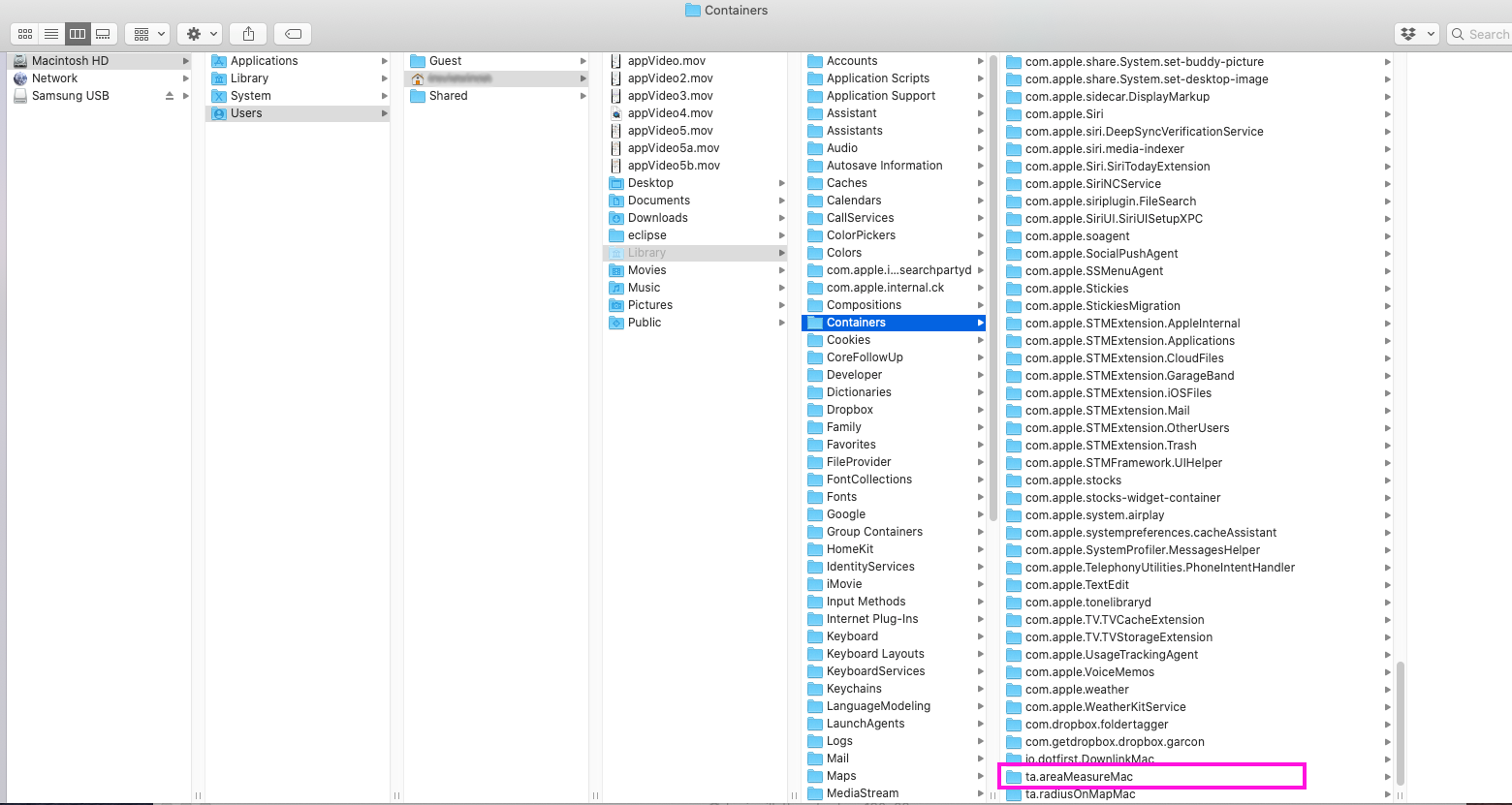
Distance and Area Measure : ~/Library/Containers/ta.areaMeasureMac
Radius on Map : ~/Library/Containers/ta.radiusOnMapMac
3) Reboot Mac atau membunuh cfprefsd dari monitor Aktivitas. English: 3) Reboot the Mac or kill cfprefsd from Activity monitor.
Preferensi bersama untuk aplikasi akan tetap ada di memori setelah dihapus. English: Shared preferences for an application will persist in memory after it has been deleted.
1) Uninstall aplikasi melalui launchpad English: 1) Uninstall the application via launchpad
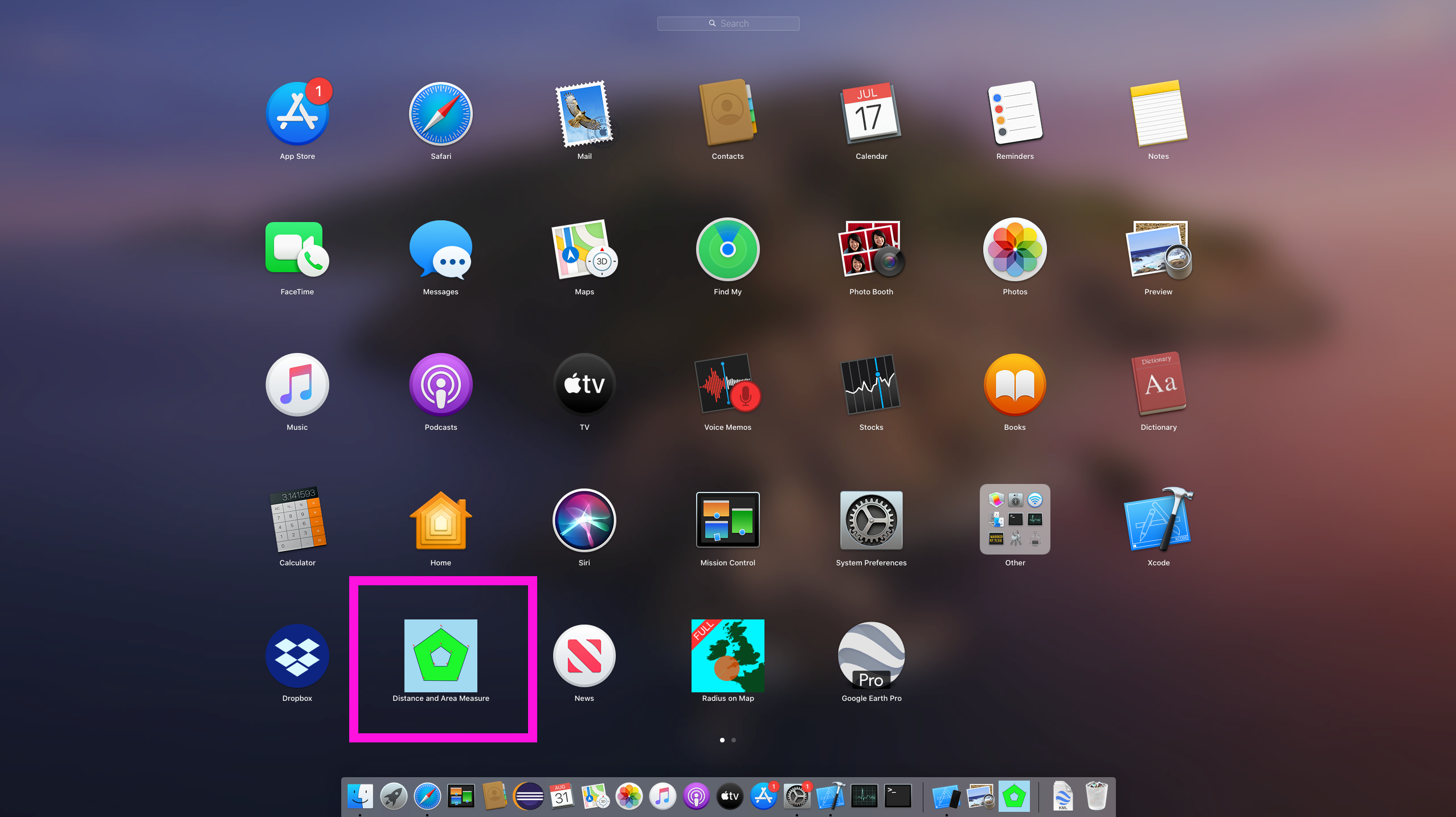
1a) Buka launchpad English: 1a) Open launchpad
1b) Cari aplikasi yang ingin Anda hapus English: 1b) Locate the application that you want to remove
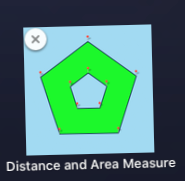
1c) Klik dan tahan ikon sampai mulai menggoyangkan. 'X' akan muncul. Klik. English: 1c) Click and hold the icon until it starts to wiggle. An 'X' will appear. Click it.
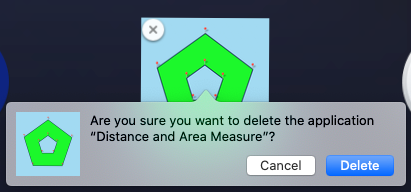
1d) Konfirmasi hapus English: 1d) Confirm delete
2) Cari dan hapus direktori sandbox aplikasi. English: 2) Locate and delete the application's sandbox directory.
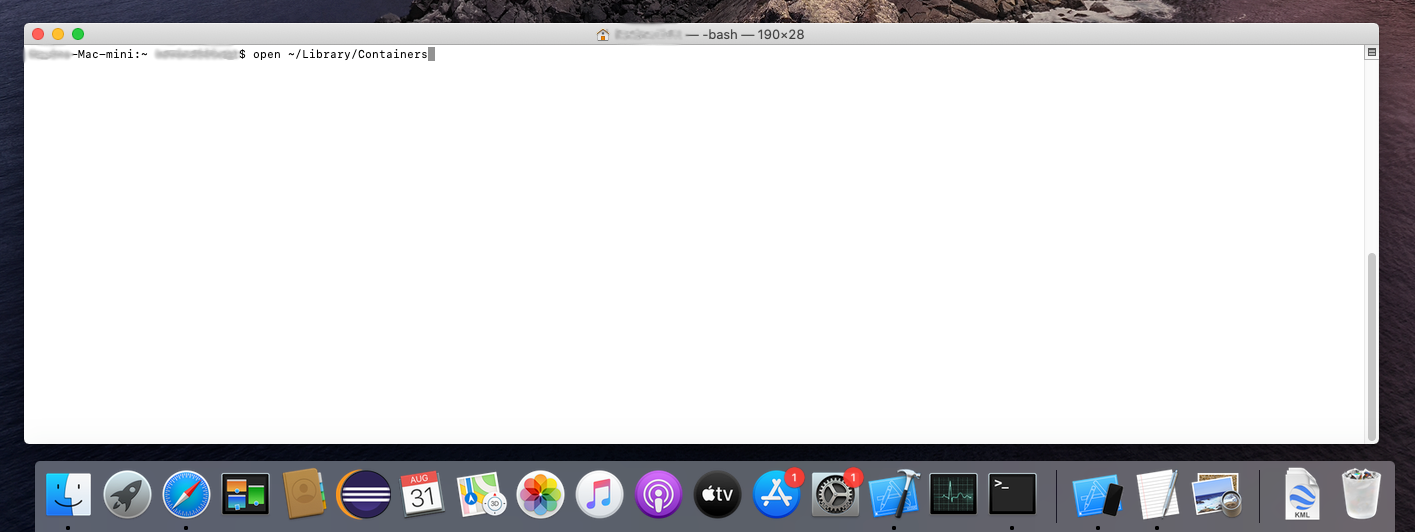
2a) Terminal terbuka English: 2a) Open terminal
.
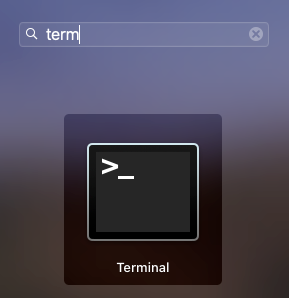
Jika terminal tidak ada di dok Anda, buka launchpad English: If terminal is not in your dock, open launchpad
dan mencarinya English: and search for it
2b)
open ~/Library/Containers
2c) Cari direktori sandbox aplikasi. English: 2c) Locate the application's sandbox directory.
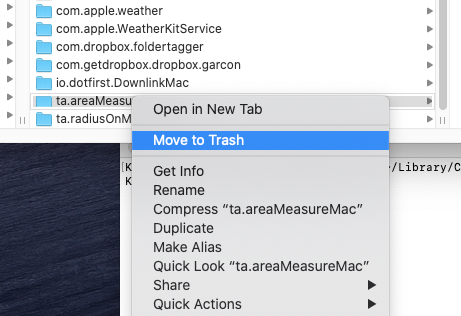
2d) Hapus direktori sandbox aplikasi. English: 2d) Delete the application's sandbox directory.
3) Reboot Mac atau membunuh cfprefsd dari Monitor Aktivitas. English: 3) Reboot the Mac or kill cfprefsd from Activity Monitor.
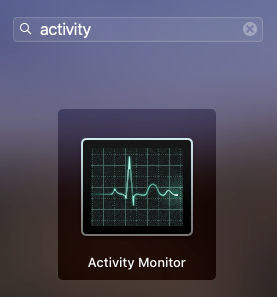
3a) Buka Monitor Aktivitas English: 3a) Open Activity Monitor
.
Jika Monitor Aktivitas tidak ada di dok Anda, buka launchpad English: If Activity Monitor is not in your dock, open launchpad
dan mencarinya English: and search for it
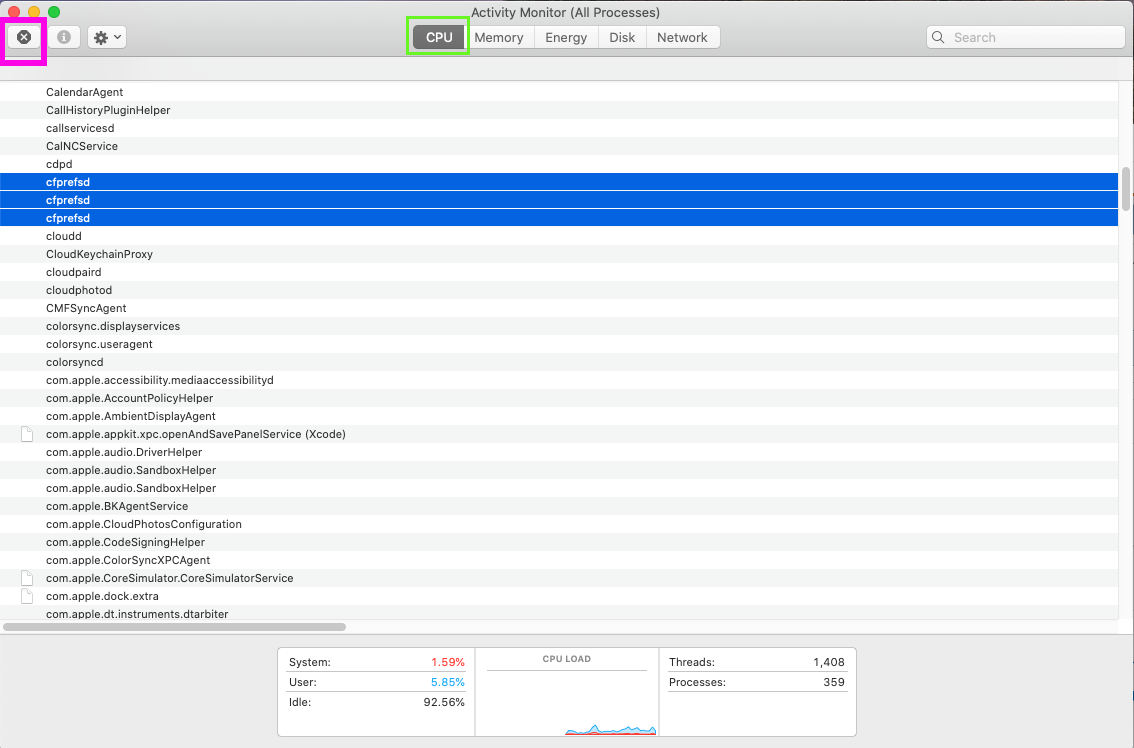
3b) Sementara pada CPU tab, urutkan proses menurut abjad dan pilih semua proses cfpresd. English: 3b) While on the CPU tab, sort processes alphabetically and select all cfpresd processes.
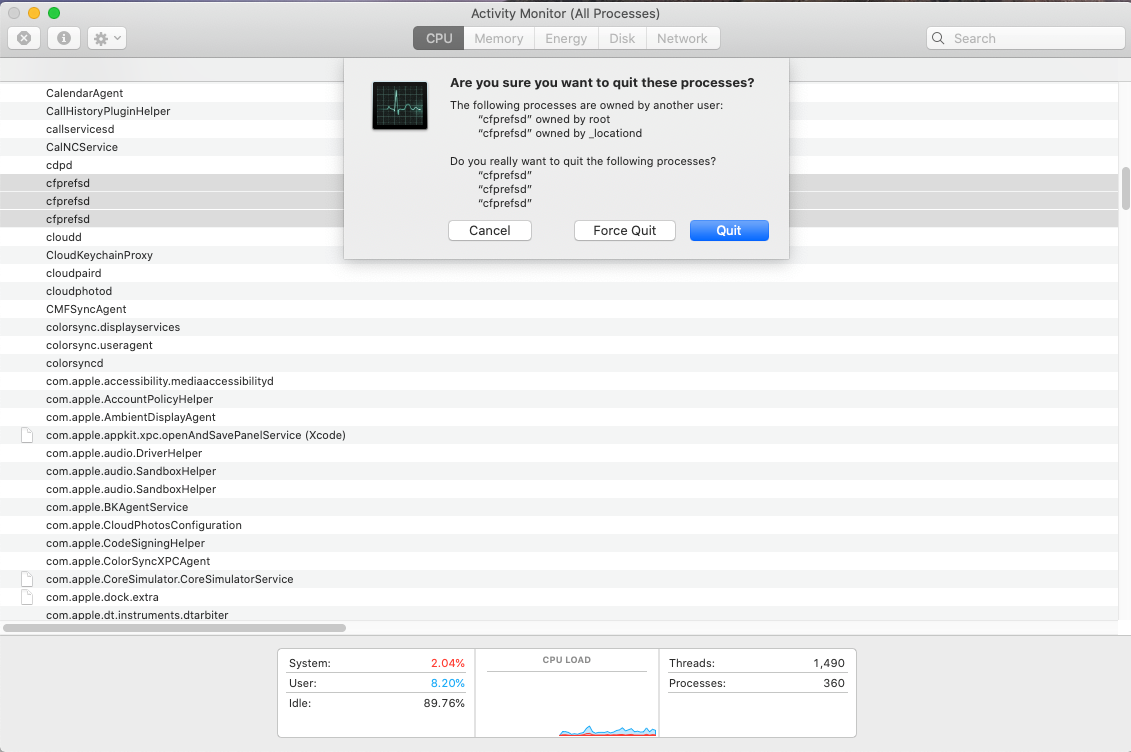
3c) Bunuh mereka dengan mengklik 'X' di sudut kiri atas (disorot dalam warna merah muda). Ini akan memicu reload preferensi bersama. Hal ini penting anda membunuh semua proses cfpresd pada saat yang sama. Membunuh mereka satu per satu mungkin tidak bekerja saat mereka me-restart dalam beberapa detik. English: 3c) Kill them by clicking the 'X' in the top left corner (highlighted in pink). This will trigger reload of shared preferences. It's is important the you kill all the the cfpresd processes at the same time. Killing them one-by-one may not work as they restart in a few seconds.
proses cfpresd akan restart dalam beberapa detik. English: cfpresd processes will restart in a few seconds.